
Epson iProjection Is wireless projection software spcifically for Epson projectors not the schools TVs.
Installing iProjection on your Windows device
1. Go to
- FountainGateSC-8870 -> Staff -> Applications -> Epson iProjection
- Or this link Epson iProjection
2. Select and download the setup file for your device. ie. Win or Mac
3. Follow prompts until install wizard closes
- Choose ‘standard’ connection mode
First time run
1. Open software, search ‘epson’ on your laptop
2. Select Agree on the Privacy Statement
3. Select Decline on Useage Survey
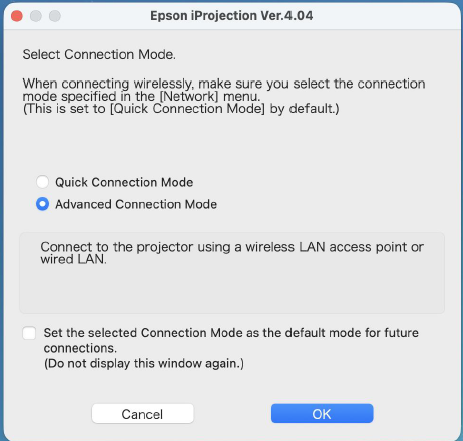
4. Choose ‘Advanced Connection Mode’ & check default mode box
5. Select Yes to disable firewall for iProjection
6. select Yes for User Access Control
Set Up the Shared Profile
1. On the Search screen, click Set options.
2. Select the User Settings tab.
3. In the Shared Profile Name field, enter the address below.
Shared Profile Name: https://www.fgsc.vic.edu.au/site/assets/files/41855/root.mplist
4. Click Apply.
5. Right-clicking ‘Shared Profile’ and selecting ‘Update Shared Profile’
You should then see all the projectors populate within their relevant blocks under ‘Shared Profile’
Using iProjection and Connecting
1. On the Search screen, click Shared Profile.
2. Double-click the folder or the projector you want to connect to. The software searches for that projector on the network.
3. Select the projector from the Projector List and click Connect.
4. If prompted, enter the Projector Keyword shown on the projected screen.
Once connected, the computer screen is projected and a toolbar appears, which can be used to control the projected image or disconnect when finished.