
How to connect to the eduSTAR wireless network on a Windows device
You must be on-site at Fountain Gate Secondary College to complete these steps.
1. In the bottom right corner of the screen;
- (Win 10) - Click on the wireless icon.
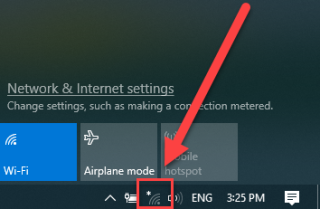
- (Win 11) - Click the network icon and then the wireless network arrow.
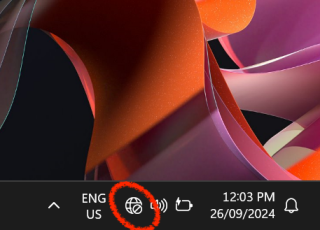
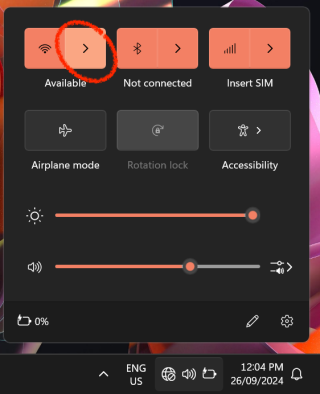
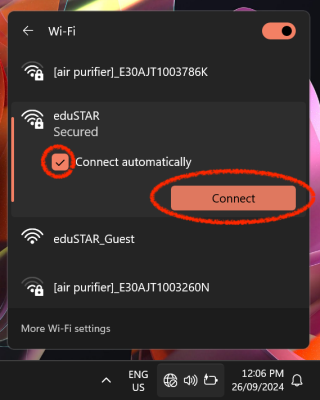
2. Select 'eduSTAR'. Make sure the 'Connect Automatically' box is ticked and click Connect.
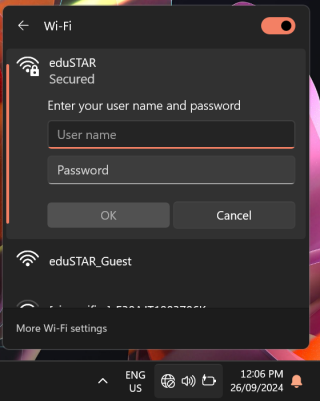
3. Enter your '@schools.vic.edu.au email address, like the following:
abdc1@schools.vic.edu.au
Enter your password (same used for Compass). Then click OK.
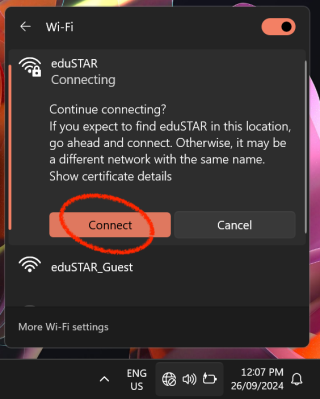
4. You will be prompted to confirm the connection. Click Connect.
You are now connected to Wi-Fi.