
Office 365 Suite Install for students (Win / Mac)
Information to help students install the Microsoft Office Suite (Word, Excel, etc)
If your BYOD device DOES NOT already have Office 365 pre-installed, or if you are running a MAC, follow these instructions from Step 1. Otherwise skip to Step 4.
Additionally, Chromebooks are not supported and do not have the capability to install Office application; web variant available under o365 Apps Login.
1. Login using your o365 portal using your DE Student ID @schools.vic.edu.au
(NOTE: This is to apply an o365 license, and to grant OneDrive resource access)
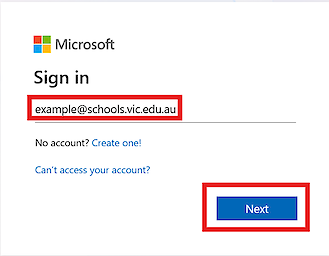
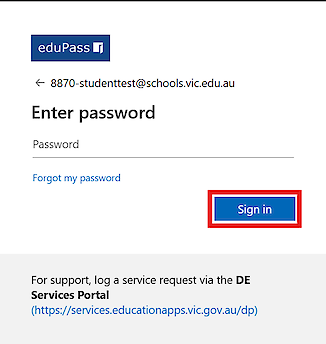
o365 Apps Login
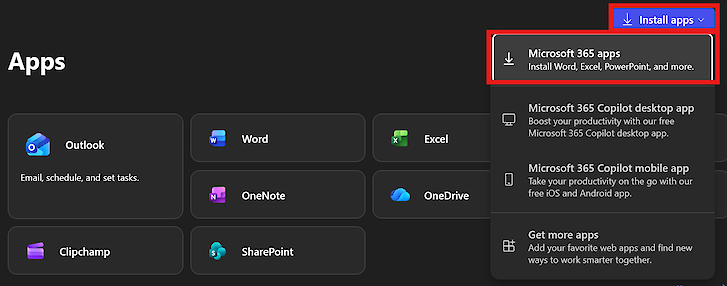
2. Top right of page click on Install Apps & from drop down menu, select Office 365 Apps
3. This will redirect to another page
Under the heading 'Office apps & devices' click Install Office
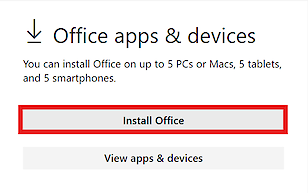
The install file should automatically start downloading by default located in downloads folder.
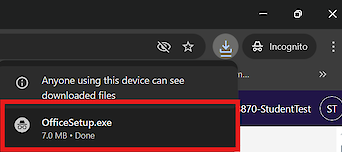
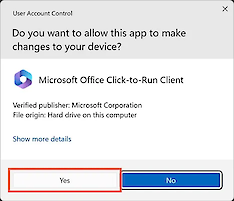
3. Once complete, run the install file. When asked to allow application to make changes to your device click Yes.
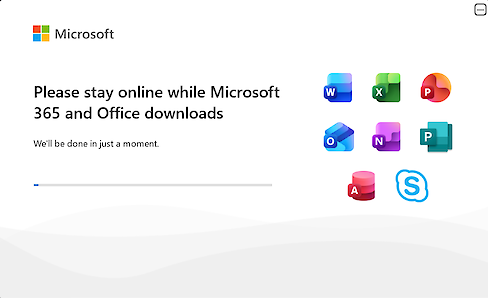
You will need to stay connected to the internet to complete the installation
3. Progression and completion should display in new window.
Office applications should also appear in windows search once installed (eg. Word, Powerpoint, Excel ).
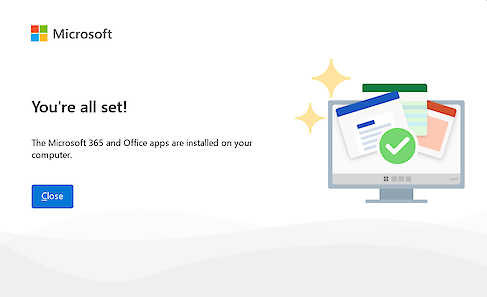
4. Once the installer has finished, open an application such as Microsoft Word. When prompted Press Sign in.
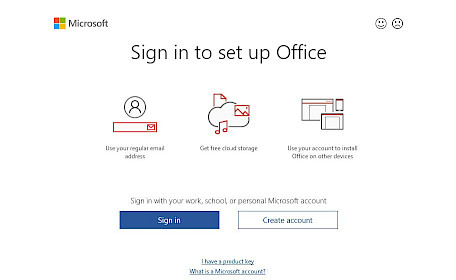
Enter your student email and password (@schools.vic.edu.au) to activate the licensing.
Extended activation and licensing guide
Once complete Microsoft Office Suite is now ready for you to use